
Overview: Why Your Wrists Hurt After a Day at the Keyboard
If you spend most of your workday typing or using a mouse, it’s easy to finish with wrists that feel heavy, achy, or slightly numb.
Often this isn’t from “overusing strength” but from holding your wrists in a poor position for hours at a time.
Research in ergonomics shows that keeping your wrists in a neutral, straight position helps reduce pressure inside the carpal tunnel and may lower irritation of the median nerve during desk work.
Guidance from ergonomics organizations also emphasizes choosing a keyboard and mouse setup that supports this neutral posture instead of forcing your wrists upward, downward, or twisted to the side.
This routine is for mild stiffness and fatigue, not for treating serious pain or disease.
If symptoms are severe, new, or persistent, consult a healthcare professional before continuing.
In this guide, you’ll learn how to set up your desk with wrist braces, palm rests, and mouse wrist supports, plus a simple 15-minute “wrist reset” you can repeat during the day.
I tested this setup on days when my wrists felt tight after long typing sessions, and even a single 15‑minute block made the rest of the evening much more comfortable.
Key Tools: Braces, Palm Rests, and Mouse Supports
Wrist braces: extra support for sensitive wrists
A wrist brace wraps around your wrist and helps prevent it from bending too far up or down while you type or use a mouse.
This can be helpful if your wrist tends to collapse into a bent position or if you already have mild, recurring symptoms.
Ergonomic guidance for carpal tunnel syndrome often recommends keeping the wrist straight because the carpal tunnel is most spacious in this neutral position, which theoretically places the least pressure on the median nerve.
However, current evidence does not clearly prove that any specific keyboard or brace design alone can treat carpal tunnel syndrome, so braces should be viewed as support, not a cure.
For everyday desk work:
- Choose a light, slim brace that allows movement rather than a rigid splint.
- Wear it loosely enough that you don’t cut off circulation.
- Use it during longer typing blocks or on days when your wrist feels more vulnerable.
If you notice increasing numbness, tingling, or loss of strength despite using a brace, stop relying on equipment alone and speak with a clinician.
Keyboard palm rests: keeping your wrists from hovering
A keyboard palm rest (often called a palm rest rather than a “wrist rest”) sits in front of your keyboard and supports the base of your palms.
This helps you avoid letting your wrists hover in the air or collapse onto the hard edge of the desk.
Ergonomic recommendations for desk workers suggest that the keyboard should be level with or slightly below elbow height, with the wrists kept straight while typing.
Palm support under the base of the hand can help maintain this neutral line from forearm to fingers and reduce compressive pressure at the wrist.
Consider a palm rest first if:
- You type for 6+ hours a day.
- Your wrists float in the air or rest on a sharp desk edge.
- Both wrists feel uncomfortable, not just the mouse side.
When you test a palm rest, notice whether your forearms, wrists, and fingers form a straight line while typing and whether your shoulders can relax instead of shrugging up.
Mouse wrist supports: for mouse-heavy roles
If your job involves heavy mouse use—spreadsheets, design software, data entry, or image editing—a mouse wrist support can help.
This is usually a small pad that supports the base of your palm near the mouse.
Studies on mouse positioning have found that setups which keep the mouse closer to the body and encourage neutral wrist posture reduce awkward positions and muscle load in the arm and shoulder.
Ergonomic guides also recommend choosing a mouse and support that allow your forearm to move the mouse, instead of bending only at the wrist.
Consider a mouse wrist support first if:
- Your right (or dominant) wrist hurts more than the left.
- Your mouse sits far away, making you reach and twist.
- You spend long blocks clicking, dragging, and scrolling.
When you try one, aim for a setup where your elbow stays close to your body, your shoulder can relax, and your wrist stays straight rather than bent up or down.
Step 1: Check Your Desk Height and Keyboard Position
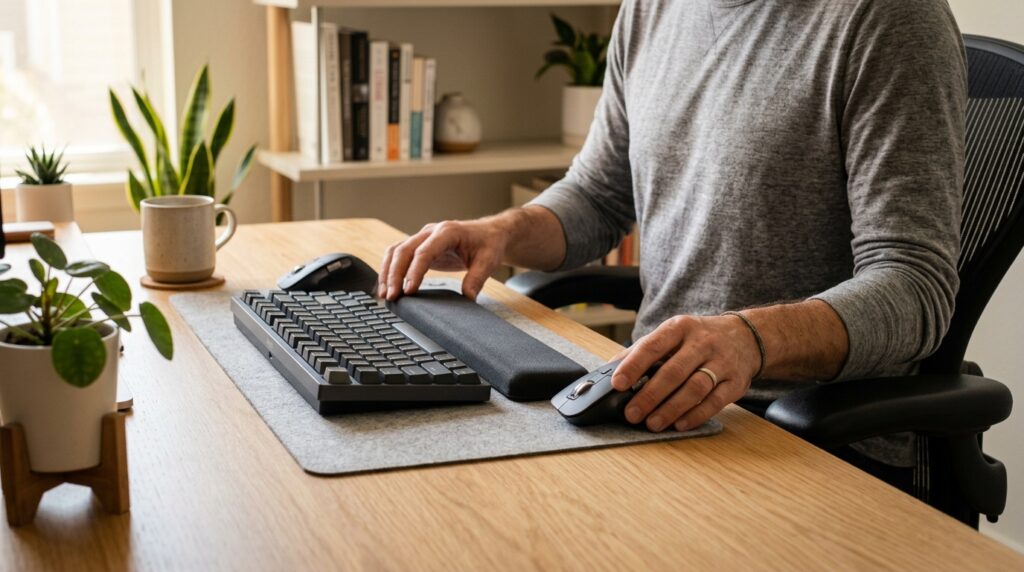
Before buying any new gear, check your current setup.
Changing the environment often makes a bigger difference than adding another brace.
Most ergonomics resources for desk workers recommend these basics:
- Your keyboard is at or just below elbow height.
- Your forearms are roughly parallel to the floor, elbows close to your sides.
- Your wrists stay straight, not bent upward, downward, or to the side.
Sit in your usual working posture and notice:
- Are your wrists resting on the sharp edge of the desk?
- Do you have to lift your shoulders to reach the keyboard?
- Is the mouse much higher or farther away than the keyboard?
If you’re also working on your overall sitting posture and back comfort, you might find our guide on 15-Minute Home Office Posture Reset: Gentle Stretches to Ease Back and Neck Tension helpful as a companion routine.
Small changes like lowering your chair slightly, tilting the keyboard, or bringing the mouse closer can reduce strain before you add any new equipment.
Step 2: Choose the Right Wrist Support for Your Work
Use this simple decision flow to choose where to start:
- If you type for 6+ hours and both wrists feel tired → start with a keyboard palm rest.
- If your mouse hand hurts more, especially around the wrist → start with a mouse wrist support and bring the mouse closer to your body.
- If your wrists already feel weak or unstable → add a light, flexible wrist brace as a secondary support, on top of palm/mouse adjustments.
Ergonomic mouse and keyboard designs that encourage a larger, flatter shape with palm support have been shown to help users keep more of their wrist movements in a neutral, low-risk zone compared to traditional designs.
The goal is not to lock the joint, but to guide it into a safer range while still allowing natural movement.
Whichever support you choose first, re-check your posture:
- Are your wrists now straight when you type and click?
- Can you rest your forearms partially on the desk to offload your shoulders?
- Does your hand feel relaxed rather than gripping tightly?
For a deeper dive into full desk posture, including lumbar support cushions and chair setup, see our post on Lumbar Support Cushion Guide: 3 Key Criteria and Office Chair Setup Tips for Desk Workers.
Step 3: Your 15-Minute Wrist Reset Routine

Even with a perfect setup, staying in one position all day is tough on your joints and soft tissues.
Research on micro-breaks shows that short, frequent breaks can reduce discomfort during computer work, especially in the neck, shoulders, and upper limbs.
Try this 15-minute “wrist reset” every 2 hours:
Minute 1–2: Shake and reset
- Stand up or sit tall, drop your shoulders away from your ears.
- Gently shake out your hands and wrists for 30–60 seconds.
- Let your arms hang and swing lightly to release tension through the whole chain from shoulders to fingers.
This helps interrupt the static holding pattern that builds up during typing and mousing.
Minute 3–4: Gentle wrist and finger stretches
- Extend one arm in front of you, palm facing up.
- With the other hand, gently bend your fingers and palm down until you feel a mild stretch in the front of your forearm, then hold for 15–20 seconds.
- Flip the palm down, gently pull the fingers toward you to stretch the back of the forearm, hold again.
- Switch sides and repeat.
Keep the stretch comfortable—no sharp pain, no forcing.
You’re aiming for gentle lengthening, not an aggressive pull.
Minute 5–7: Open the chest and shoulders
Wrist pain often comes with rounded shoulders and a tight upper back.
Use a few minutes to reset your upper body.
- Interlace your fingers behind your back (or hold a towel), gently draw your shoulders back and down, and lift your chest.
- Hold for 15–20 seconds, breathing slowly.
- Then roll your shoulders in slow circles, 10 times forward and 10 times backward.
Studies on micro-breaks in computer work suggest that combining short posture changes and movement can reduce overall discomfort and improve comfort ratings across the day.
Minute 8–10: Keyboard-only work, no mouse
For the next few minutes, step away from the mouse.
Do only tasks you can manage with the keyboard and shortcuts.
- Answer a quick email using only the keyboard.
- Navigate between windows with shortcut keys.
- Type notes or a short to-do list without reaching for the mouse.
This gives your mouse hand a brief rest from gripping and clicking while still keeping you productive.
If you need ideas for short, focused blocks of work, you may also like our routine: 15-Minute Wrist and Elbow Reset Routine After a Day of Keyboard and Mouse Work.
Minute 11–15: Quick posture and desk check
Use the last five minutes to adjust your setup rather than diving back into full-speed work immediately.
- Re-align your chair so your feet are flat and knees around 90 degrees.
- Check that your keyboard is still at or below elbow height.
- Bring your mouse close to the side of your keyboard so you don’t have to reach.
- Make small tweaks to your wrist brace, palm rest, or mouse support if anything feels off.
Think of this as a “mini reset” for the next 1–2 hours of work.
Over time, these small adjustments plus regular micro-breaks can make a meaningful difference in how your wrists feel at the end of the day.
When to Stop and See a Professional
Wrist supports and micro-break routines are meant to help with mild stiffness and everyday fatigue.
They are not a substitute for medical evaluation or treatment.
Contact a healthcare professional—such as a doctor, physical therapist, or occupational therapist—if you notice any of the following:
- Wrist pain lasting more than a few weeks.
- Night pain that wakes you up.
- Tingling, numbness, or “pins and needles” in the thumb, index, or middle fingers.
- Weak grip, frequent dropping of objects, or obvious loss of strength.
Guidelines for carpal tunnel syndrome emphasize that ergonomic changes and braces may be helpful adjuncts, but persistent or worsening symptoms require proper diagnosis and tailored care.
Related Routines You Might Like
- 15-Minute Wrist and Elbow Stretch Routine for Developers and Desk Workers – A focused routine to ease tension after heavy keyboard and mouse work.
- 15-Minute Wrist Protection Routine for Students and Desk Workers – A gentle sequence designed to support wrist health during long study or typing sessions.
- 15-Minute Home Office Posture Reset: Gentle Stretches to Ease Back and Neck Tension – A full upper-body reset to pair with your wrist routine for better overall comfort at your desk.
Frequently Asked Questions
Q1. Do I really need a wrist brace, or can I just fix my posture?
A: Many people feel better by first adjusting desk height, keyboard position, and using a palm rest or mouse support.
A light wrist brace can help if your wrists still tend to collapse or if you already have mild symptoms, but it should be an add-on, not a replacement for good ergonomics and movement breaks.
Q2. How often should I do the 15-minute wrist reset?
A: A good starting point is once every 2 hours of continuous computer work.
Research on micro-breaks suggests that short, regular breaks during computer tasks can reduce discomfort, especially in the upper body, compared with working straight through without breaks.
Q3. Are palm rests and mouse wrist supports safe for carpal tunnel?
A: When used correctly, palm and wrist supports can help you maintain a more neutral wrist posture and reduce pressure at the base of your palm, which may lower strain on the median nerve.
However, current evidence does not prove that ergonomic equipment alone can treat carpal tunnel syndrome, so you should still pay attention to symptoms and seek medical advice if they persist or worsen.
Q4. Can I use this routine if I already have wrist pain?
A: If your pain is mild and clearly linked to long periods of typing or mouse use, gentle stretches and posture changes like the ones in this routine are usually safe.
But if your pain is severe, getting worse, or is accompanied by numbness, weakness, or night pain, it’s important to see a healthcare professional before continuing with any new routine.
Learn More
For more on ergonomics, micro-breaks, and wrist-friendly setups, see:
- Cochrane – Ergonomic positioning or equipment for carpal tunnel syndrome
Overview of research on whether ergonomic keyboards and neutral wrist positioning help with carpal tunnel symptoms and why neutral wrist posture is emphasized.
https://www.cochrane.org/evidence/CD009600_ergonomic-positioning-or-equipment-carpal-tunnel-syndrome - CCOHS – Office Ergonomics: Computer Mouse – Selection and Use
Practical guidance on choosing and using a computer mouse to keep the hand and wrist in a neutral position and reduce muscle strain.
https://www.ccohs.ca/oshanswers/ergonomics/office/mouse/mouse_selection.html - Cornell University Ergonomics Web – Case Study on Keyboard and Mouse Setup
Real-world case study showing how adjusting keyboard and mouse position helped a computer worker maintain neutral wrist posture and reduce strain.
https://ergo.human.cornell.edu/AHProjects/ErgCS1.html - ScienceDirect – Computer terminal work and the benefit of microbreaks
Study showing that regular micro-breaks during computer work reduced discomfort across multiple body regions compared with working without breaks.
https://www.sciencedirect.com/science/article/abs/pii/S0003687000000715
Leave a Reply